

Cleaner · Battery · Tools
Make room for what matters.
A phone cleaner that leaves every decision to you, a detailed battery monitor, 5G and Wi-Fi tools, and everyday utilities: 31 tools in one app. Everything it reads is worked out on your phone.
- Runs on
- Android 7.0+
- Languages
- English, Indonesian
- Account
- None needed
- Price
- Free, with ads

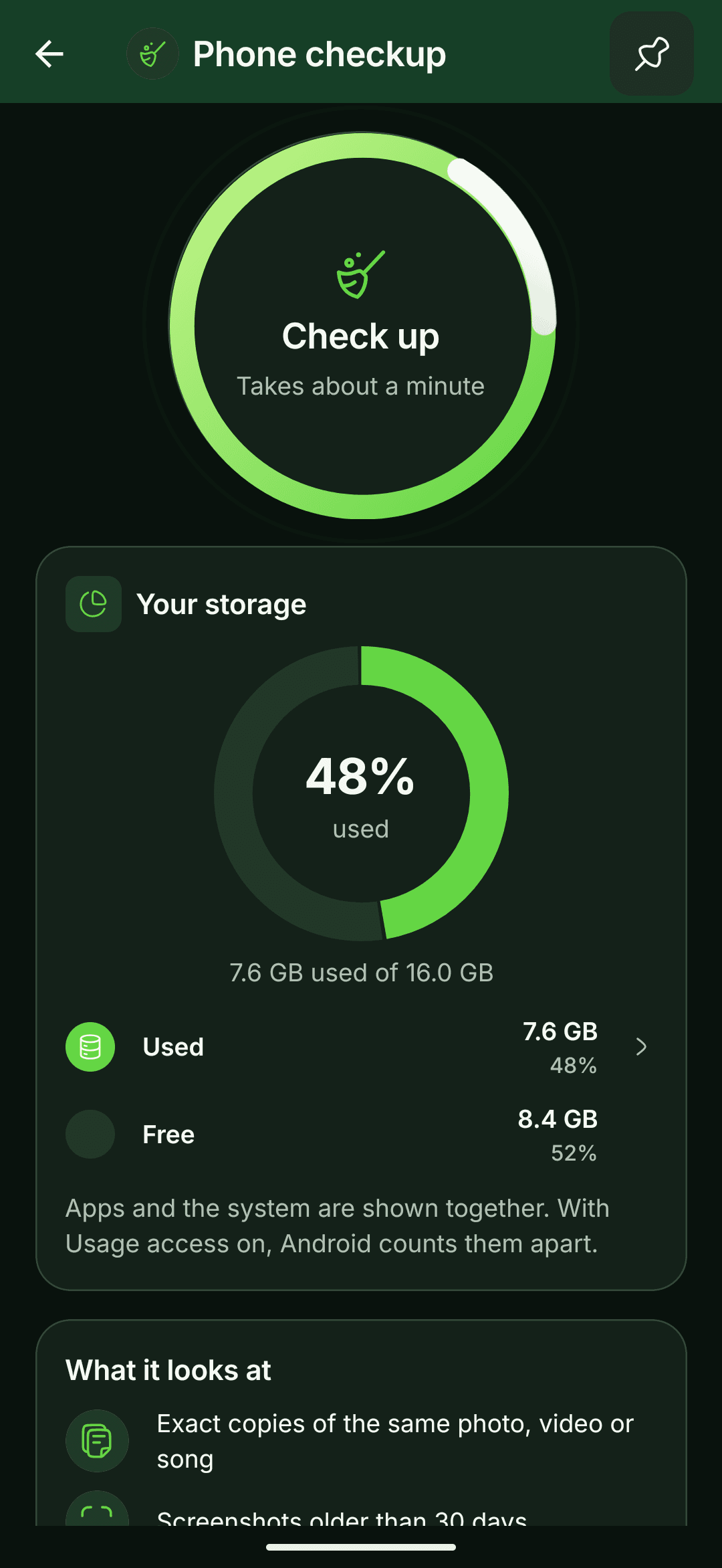
01Phone checkup
One tap finds what you can free. You decide what goes.
The checkup looks through photos, videos and audio, old screenshots, exact copies, look-alike and blurry photos, chat apps’ media, the biggest files and unused apps, then sorts what it finds by how sure it is.
01One tap
Extra exact copies and screenshots older than a month. You see every file first, then Android asks once more.
02App by app
Apps untouched for 30 days, removed only through Android’s own confirmation, and app caches, cleared from each app’s settings page.
03To review
Look-alike and blurry photos in a swipe review (keep, delete or skip, with undo), chat apps’ media and the biggest files.
HyperBoost measures free space before and after a clean-up, and counts only what Android confirms is gone.
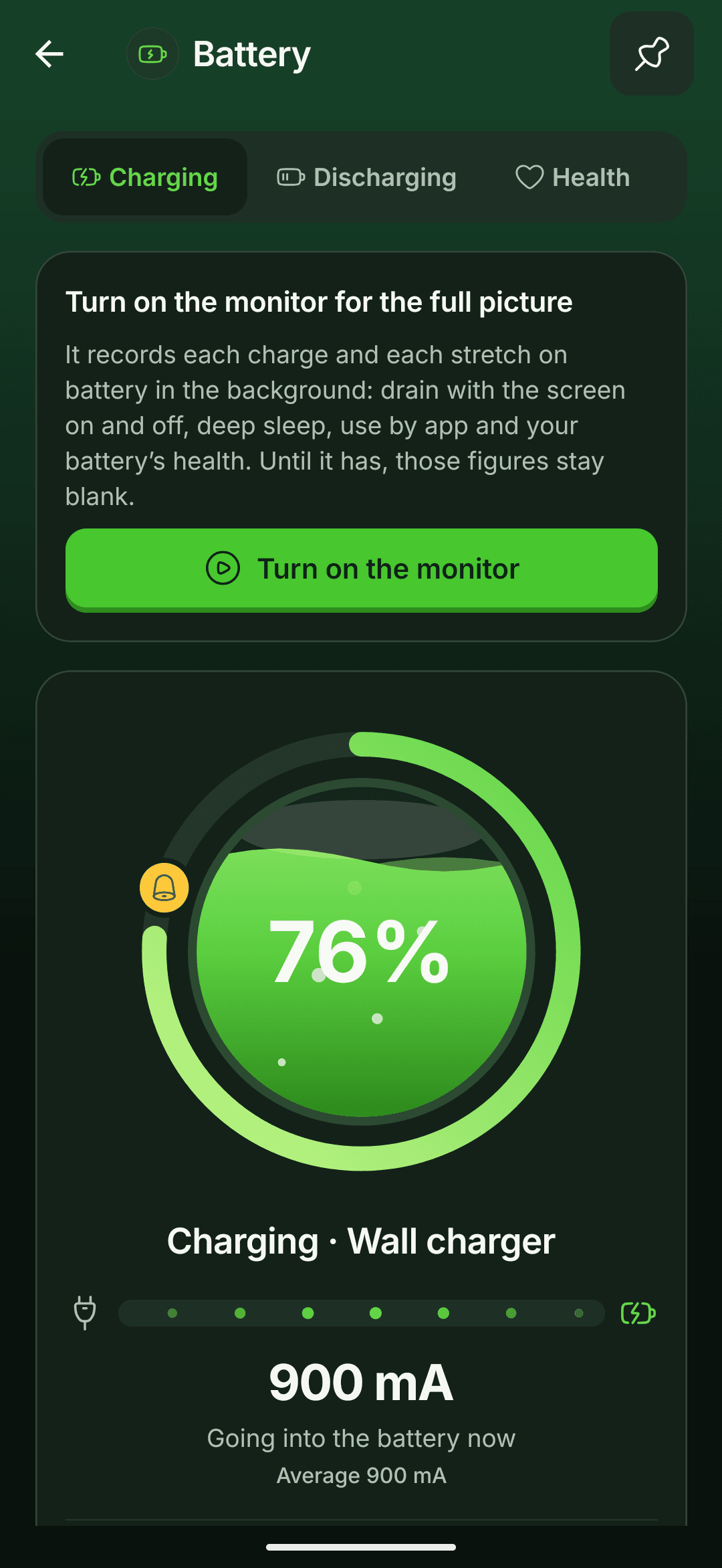
02Battery
Know your battery better.
Charging, Discharging, Health and History, with live readings from your phone. A reading your phone doesn’t provide is shown as unavailable, never made up.
- Charging speed
- In watts, on a live dial
- Current, voltage, temperature
- Live, as your phone reports them
- Health
- Estimated after a few charges, and labelled as an estimate
- History
- Every charge and discharge, with the optional monitor
- Charge alarm
- At 80% by default, or a level you choose
The battery monitor stays off until you turn it on. While it runs it shows a notification, and a switch at the top of every Battery tab turns it off.
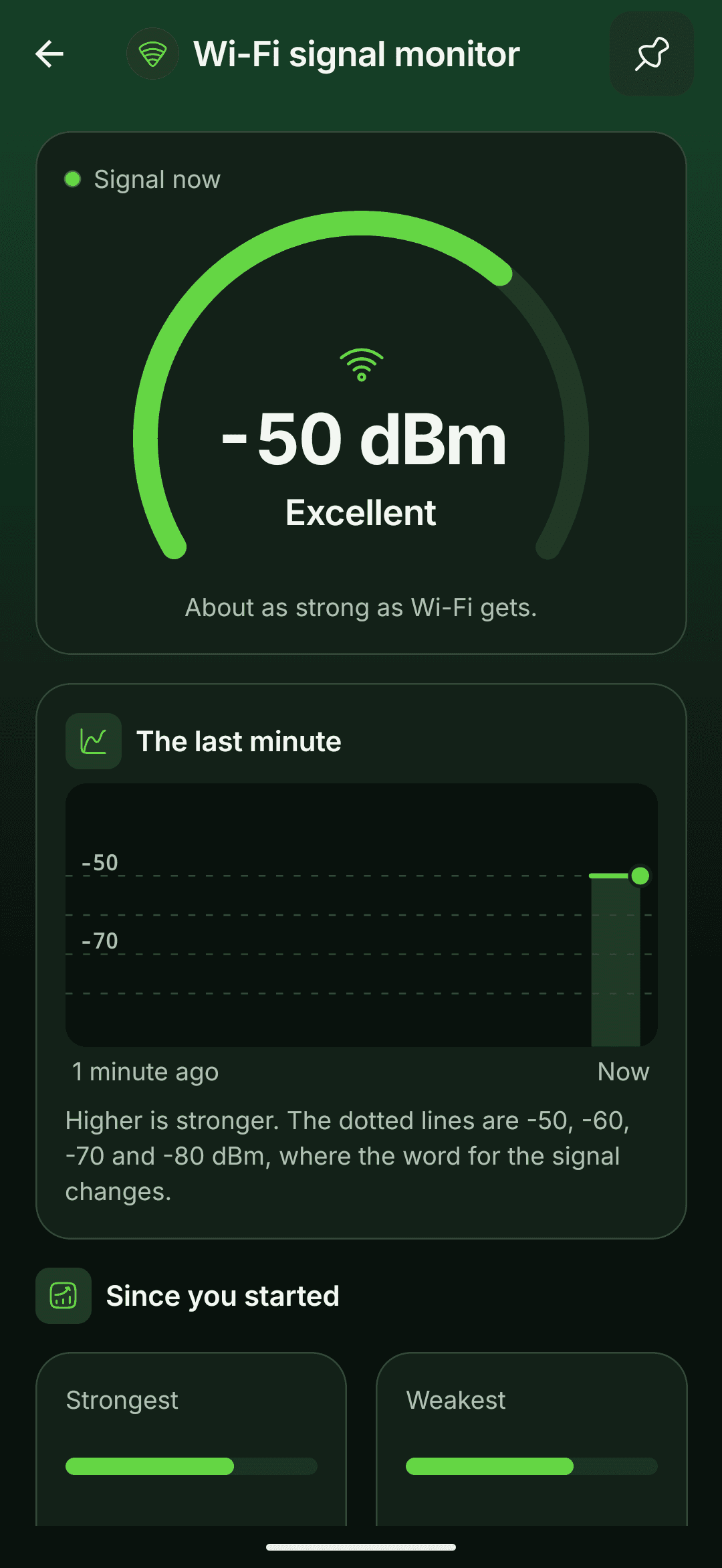
03Wi-Fi and 5G
Understand your connection.
See your Wi-Fi signal in plain words, find a less crowded channel, and follow clear steps when the internet is slow.
- Wi-Fi signal monitorLive signal in dBm, with its last minute
- Channel surveyNearby networks drawn over their channels
- Connection troubleshooterFour checks, then what’s wrong and what to try
- Network lockAndroid’s own screen for 4G only, 5G + 4G or 5G only, then what the phone really uses
Network modes depend on your phone, Android version, SIM and carrier. HyperBoost cannot add 5G to a phone, and Samsung and some other phones have removed the screen the network lock opens.
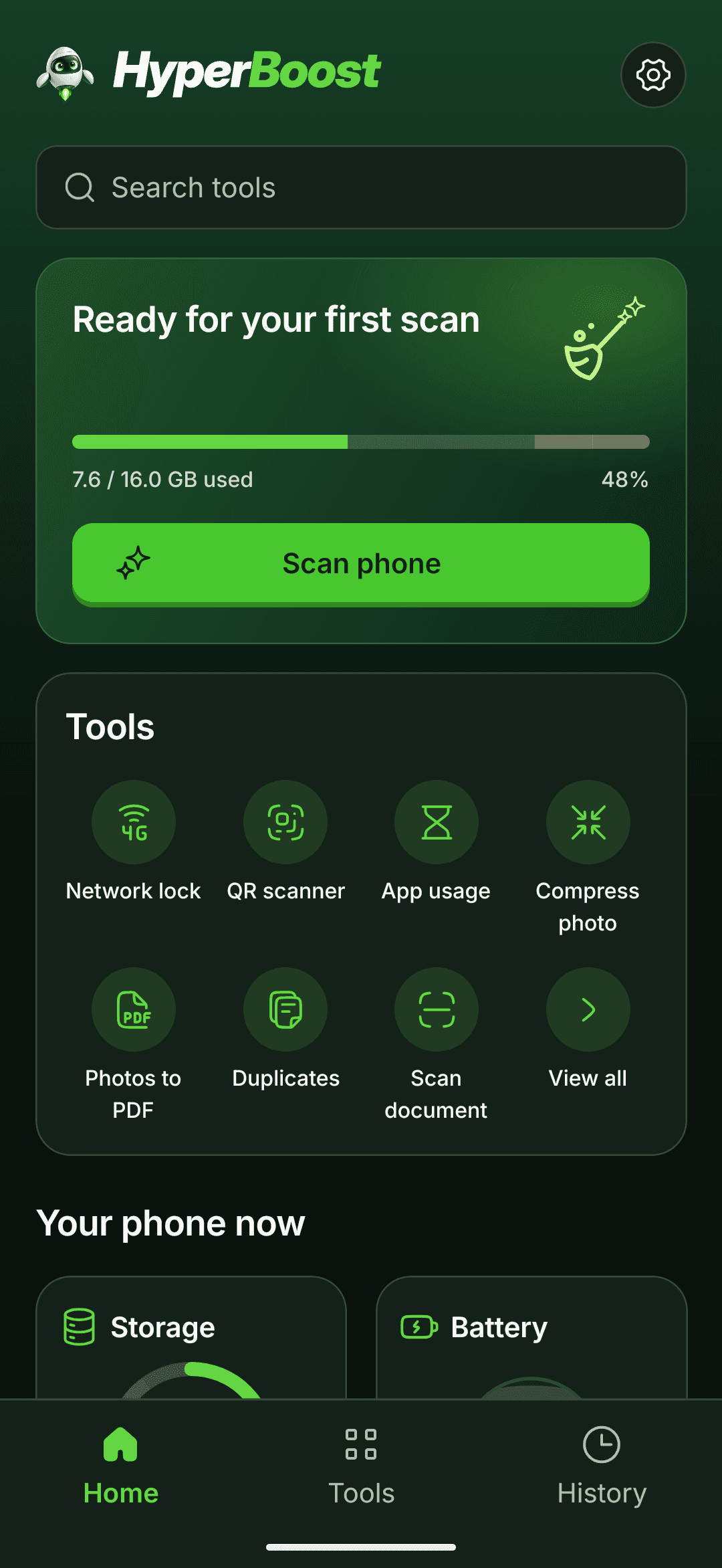
04Every tool
Thirty-one tools, in six groups.
As the Tools tab lists them. Search finds any of them by everyday words, in English or Indonesian.
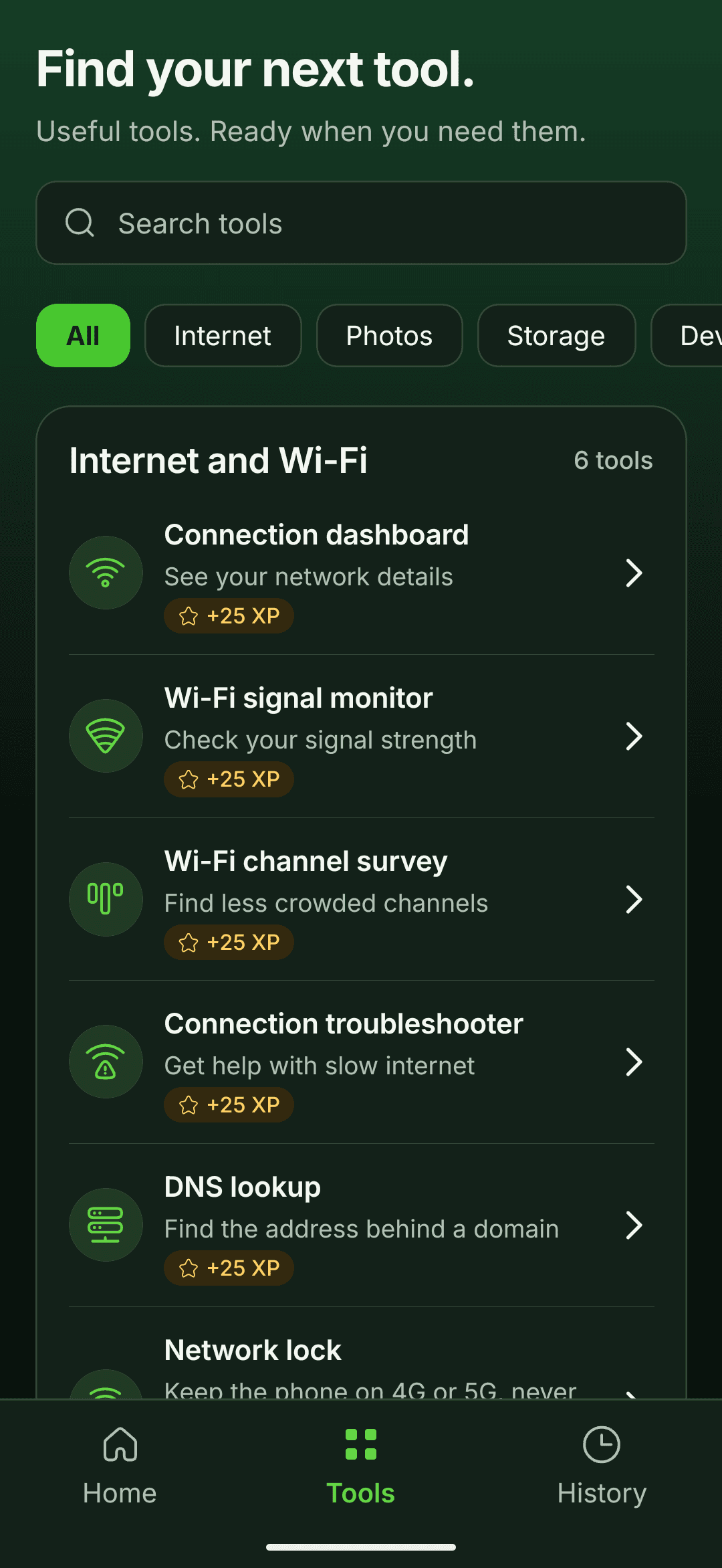
Internet and Wi-Fi
6Connection dashboard
What carries your traffic, and whether it reaches the internet.
Wi-Fi signal monitor
Live signal in dBm, in plain words, with its last minute.
Wi-Fi channel survey
Nearby networks over their channels, to spot a crowded one.
Connection troubleshooter
Four checks, then what is wrong and what to try.
DNS lookup
IPv4 and IPv6 addresses through your phone’s own resolver.
Network lock
Opens Android’s Phone info screen for 4G or 5G, then reports what the phone really uses.
Photos and documents
5Photo compressor
A smaller copy, side by side with the original, which is kept.
Resize, crop and convert
Crop, turn, resize or change format, saved as a new copy.
Photos to PDF
Up to 40 photos into one PDF, on A4 or Letter.
Document scanner
Finds a page’s edges and straightens it; up to 30 pages as a PDF.
Text from images
Reads text in a photo on the phone, to copy, share or save.
Storage and files
4Storage overview
How full the phone is, mapped by kind, and what fills any folder.
Large file finder
The biggest photos, videos and audio, to review and delete.
Exact duplicate finder
Byte-for-byte copies in groups, with the space the extras take.
Phone checkup
Copies, look-alike and blurry photos, old screenshots, big files and unused apps, freed only after your review.
Battery and device
4Battery
Level, charging speed in watts, current, temperature and voltage, live.
Battery monitor
Optional. Records every charge and discharge, with a charge alarm.
Device information
Model, Android version, security update, chip, memory and screen.
App usage
Screen time per app, today and over a week.
Hardware checks
6Touchscreen check
Swipe every square of a grid to find dead spots.
Display check
Full-screen colours and gradients for dead pixels and banding.
Speaker check
Test tones on the left, the right and both.
Microphone check
A short recording with a live level, played back.
Vibration check
Six patterns, at three strengths where the phone allows.
Sensor explorer
Every sensor the phone has, with live readings.
Everyday tools
6QR and barcode scanner
Shows where a link really goes before you open it.
QR code maker
Text, a link or a Wi-Fi network, drawn as you type.
Flashlight
With brightness levels where the phone has them.
Compass
A dial that turns to magnetic north.
Bubble level
For flat surfaces and edges, with calibration.
Unit converter
52 units of length, area, weight, temperature, volume and data, offline.
05Around the app
Small things that make it yours.
- Home-screen widgets
- Phone now and Battery, live, in two sizes. Each part opens its own screen.
- Quick fixes
- Step-by-step help for “Internet slow?”, “Need more space?” and “Check this phone”.
- Dash and progress
- XP, levels and badges as you look after your phone, and new colours for Dash as you level up.
- History
- Every saved file, scan summary and check result in one list.
- Pins and shortcuts
- Pin up to four tools to Home, or put any tool on your home screen.
- Light and dark
- Follows your phone, or set it yourself in Settings.
06Your data
Your phone does the work.
HyperBoost reads your photos, files and readings only to show you results, on your phone. We don’t run servers that receive your data.
Read the privacy policy- No account and no sign-in.
- Your photos, files, recordings, app list and readings never leave your phone through us.
- Each permission is explained on screen before Android asks for it, and only when a tool needs it.
- Nothing is deleted without your review and Android’s own confirmation.
- Ads come from Google AdMob. In the EEA, the UK and Switzerland you’re asked for consent first, and you can change it any time in Settings → Ad privacy.
Is HyperBoost free?
Yes. HyperBoost is free and supported by ads from Google AdMob. If you want a break, you can choose to watch one rewarded ad for an hour without other ads.
Do I need an account?
No. There is no account and no sign-in, and every tool works without one.
Will it speed up my phone?
HyperBoost doesn’t claim to speed up your phone, clean memory or cool the processor: Android lets no app do that. It shows you files you can free and leaves the decision to you, and it counts only the space Android confirms is gone.
Why do the Wi-Fi tools ask for location?
Android requires location permission before any app can see Wi-Fi network names or scan nearby networks. HyperBoost never reads your position and never sends it anywhere.
Can it put my phone on 5G?
The network lock opens Android’s own Phone info screen, where supported phones let you choose 4G only, 5G + 4G or 5G only, then shows which network your phone actually uses. It depends on your phone, Android version, SIM and carrier, and it cannot add 5G to a phone that lacks it.
How do I delete my data?
Everything HyperBoost keeps is on your phone. Uninstall the app, or open Android Settings → Apps → HyperBoost → Storage → Clear storage. Files you saved stay in the HyperBoost folders under Pictures, Documents and Recordings (Music on Android 11 and older) until you delete them.
Get HyperBoost for Android.
Free on Google Play. Android 7.0 and newer.